Call Agent – OpenAI Settings Configuration (Tenant Guide)
📍 Where to Find OpenAI Settings
After logging into your tenant dashboard:
-
Open the left sidebar
-
Go to API Configurations
-
Click Open AI Settings
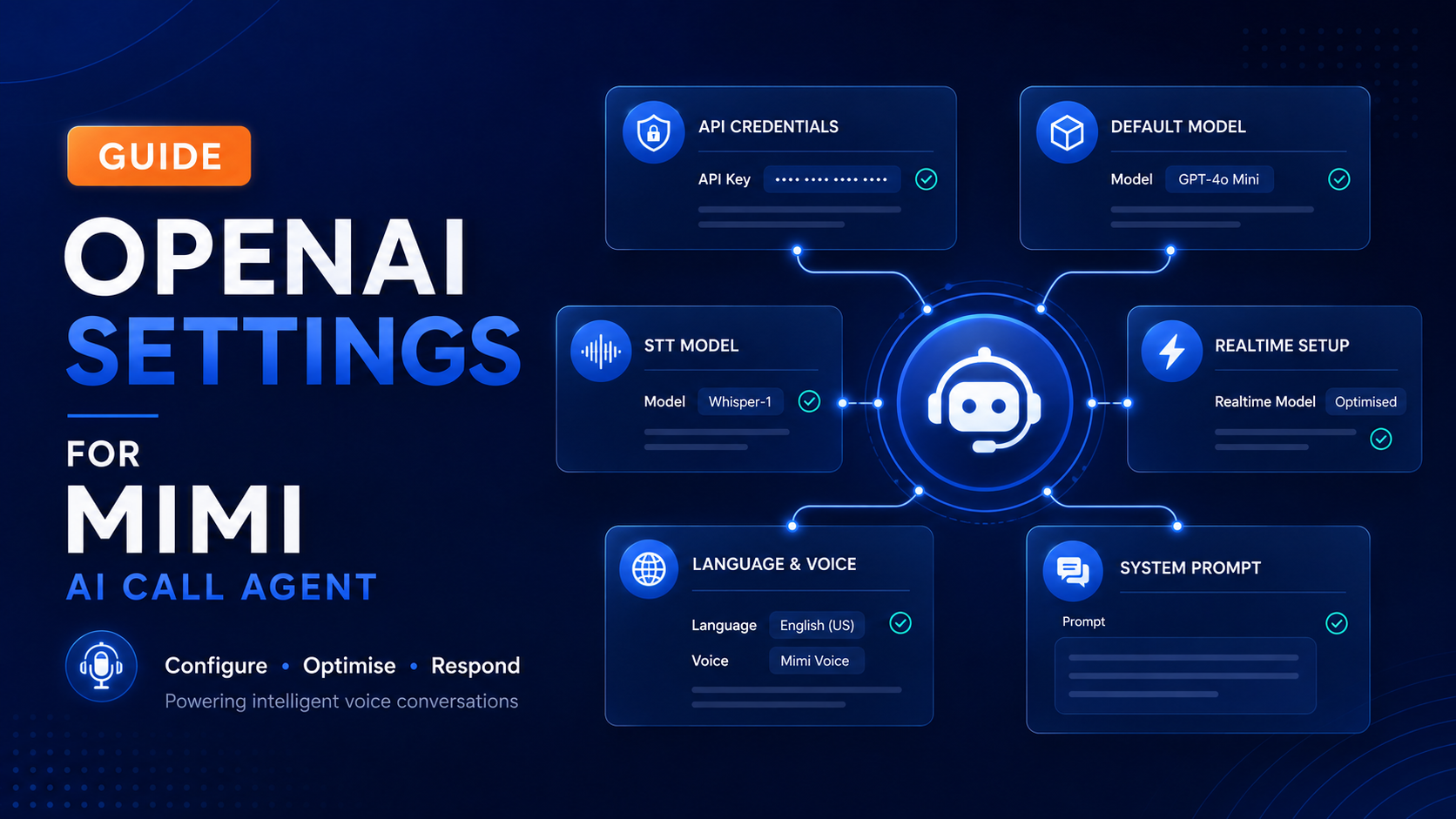
You’ll now see the configuration screen where everything comes together.
🔐 Step 1: Add Your OpenAI API Key
The first and most important step is adding your OpenAI API key.
What to do:
-
Generate an API key from your OpenAI account
-
Paste it into the API Key (Encrypted) field
🔒 This key allows to communicate safely with OpenAI services.
🤖 Step 2: Choose the Default AI Model
Next, select the AI model that powers your call agent.
Recommended option:
GPT-4o Mini
Why this model?
-
Fast response time
-
Cost-efficient
-
Excellent conversational performance
This model is ideal for voice calls and real-time conversations.
🎙 Step 3: Enable Speech-to-Text (STT)
For the call agent to understand callers, it needs speech-to-text.
Recommended STT model:
Whisper-1
Whisper accurately converts the caller’s voice into text, even in noisy environments.
⚡ Step 4: Configure the Realtime AI Model
To enable live, interactive calls, configure the realtime model.
Recommended value:
gpt-realtime
This ensures:
-
Low latency responses
-
Smooth voice conversations
-
Natural call flow
🌍 Step 5: Select the Realtime Language
Choose the language your call agent will use.
Example:
-
en→ English -
ar→ Arabic -
fr→ French
This setting ensures the AI understands and speaks the correct language during calls.
🔊 Step 6: Pick the AI Voice
The voice defines how your call agent sounds to customers.
Example voice:
alloy
You can change the voice later to match your brand tone — friendly, professional, or neutral.
🧠 Step 7: Write the Realtime System Prompt
This is where you shape your AI’s personality.
Example:
You are a professional virtual call agent. Speak politely, respond clearly, and assist the caller efficiently.
This prompt controls:
-
Tone of voice
-
Response style
-
Call etiquette
Think of it as training your AI employee.
📝 Step 8: Add Call Agent Instructions
Instructions guide the AI on what to do during the call.
Example:
-
Greet the caller politely
-
Ask how you can help
-
Collect required information
-
Confirm before ending the call
Clear instructions lead to better, more consistent calls.
💾 Step 9: Save Your Settings
Once everything is configured:
-
Review your inputs
-
Click Save OpenAI Settings
Your AI Call Agent is now live and ready to answer calls.
✅ Best Practices for Tenants
To get the best results:
-
Keep prompts simple and clear
-
Test calls after every change
-
Avoid sensitive data in prompts
-
Customize instructions per business use case