Industry Template Setup Guide for MIMI AI Call Agent
27/07/2026
—
🏢 Industry Template Setup Guide for MIMI AI Call Agent
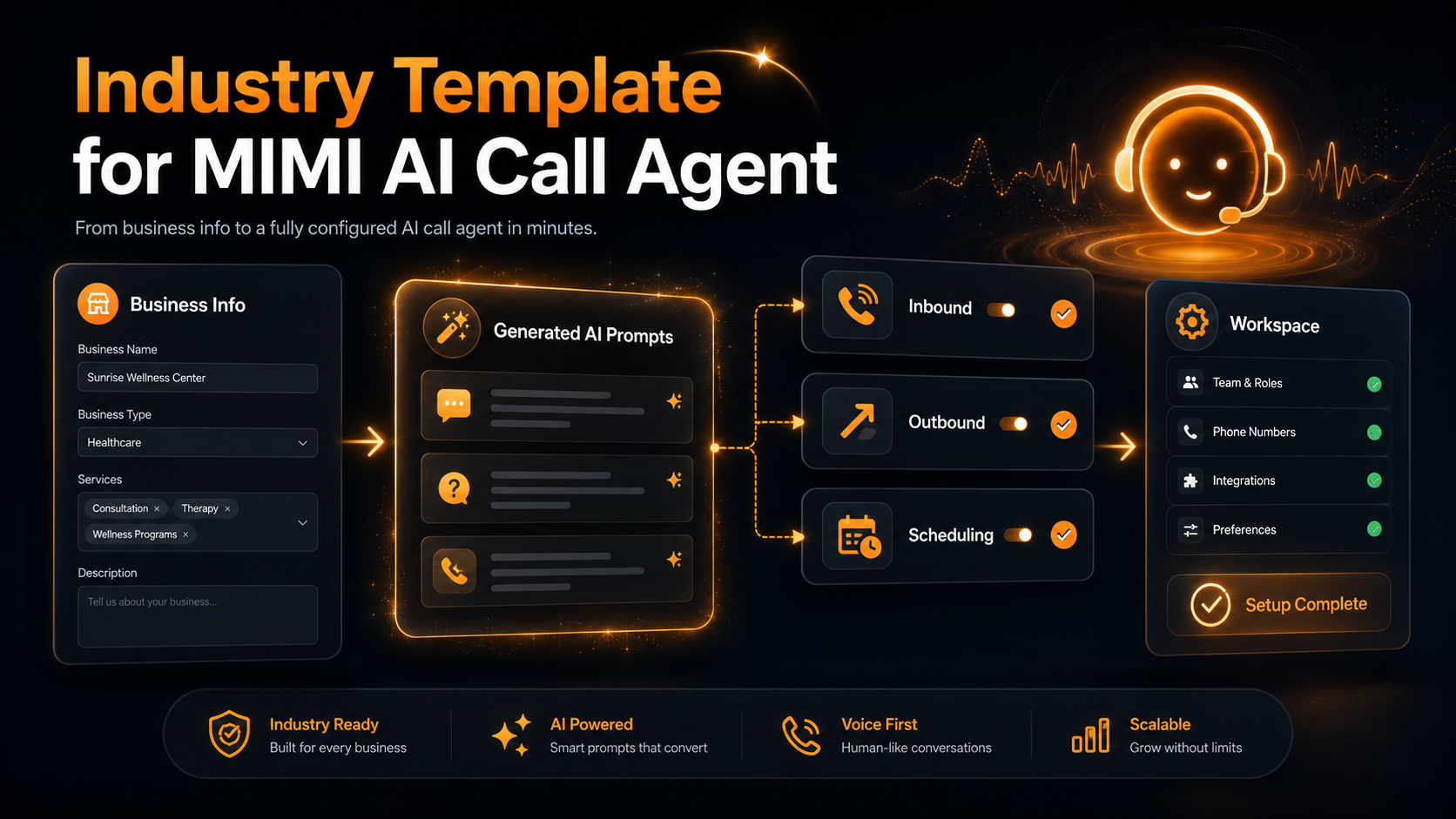
The Industry Template helps you quickly configure MIMI for your business during your first login.
Instead of writing AI prompts manually, you provide basic information about your business, and MIMI generates suitable inbound and outbound call instructions for you.
This guide explains how to complete the setup and what you should review before using MIMI.
✅ What Is the Industry Template?
The Industry Template is a first-time setup wizard for your MIMI account.
It helps MIMI understand:
🏢 Your business name
📂 Your business type
📝 What your business does
🛠️ Which services you provide
Based on this information, MIMI creates:
🎙️ An inbound call prompt
🧠 General AI instructions
📞 An outbound call prompt
You can review and edit all generated content before saving it.
📍 When Does the Setup Appear?
The Industry Template setup appears on your dashboard during your first login after signup or plan purchase.
It normally appears only once.
You can either:
✅ Complete the setup
or
⏭️ Skip it and configure the missing settings later
If you skip the setup, any important missing settings may still appear in your dashboard checklist.
🧾 Step 1: Enter Your Business Information
The first step collects basic information about your business.
1. 🏢 Business Name
Enter the official name of your business.
Example:
Medical clinic
MIMI uses this name when introducing your business during calls.
2. 📂 Business Type
Choose or enter the industry in which your business operates.
Examples:
🏥 Medical clinic
🦷 Dental clinic
🏨 Hotel
✈️ Travel agency
🏠 Real estate agency
🛒 Online store
🔧 Repair company
💼 Business consultancy
Your business type helps MIMI generate suitable language, call behaviour, and safety rules.
3. 📝 Basic Business Information
Add a short description of what your business does.
Example:
We help patients schedule consultations, routine checkups, follow-up visits, and callback requests.
Include clear information about:
✅ Who your customers are
✅ What help you provide
✅ Which common requests MIMI should handle
✅ Which requests should be sent to a human team member
4. 🛠️ Main Services
Enter the main services offered by your business.
Example for a clinic:
🩺 General consultation
✅ Routine checkup
📅 Follow-up appointment
📞 Callback request
Example for a travel agency:
✈️ Flight enquiries
🏨 Hotel booking enquiries
📅 Trip consultation requests
📞 Customer callbacks
Adding accurate services helps MIMI give customers more relevant answers.
🤖 Step 2: Generate AI Prompts
After entering your business information, click:
✨ Generate AI Prompts
MIMI will create three business-specific prompts.
1. 🎙️ Inbound Realtime System Prompt
This prompt controls how MIMI behaves when a customer calls your business.
It may explain:
🤖 Who MIMI is
🏢 Which business MIMI represents
📞 Which customer requests MIMI should handle
📝 Which details MIMI should collect
🚫 What MIMI must not promise
👨💼 When MIMI should involve a human
👋 How MIMI should end the call
2. 🧠 OpenAI Instructions
These instructions control MIMI’s general communication style and safety behaviour.
They may include rules such as:
✅ Speak clearly and professionally
1️⃣ Ask one question at a time
📝 Confirm important customer information
🔐 Protect private information
🚫 Do not make unsupported promises
📋 Stay within the services offered by the business
👨💼 Transfer or escalate when human help is required
⚠️ Follow safety rules for the selected industry
3. 📞 Outbound System Prompt
This prompt controls how MIMI behaves when calling customers.
It may explain:
🤖 Who MIMI is
🏢 Which business MIMI represents
📞 Why MIMI is calling
✅ How MIMI should confirm the correct person
🕒 How MIMI should check whether it is a good time to talk
📝 Which details MIMI should collect
🚫 What MIMI must not guarantee
👋 How MIMI should end the call politely
✏️ Review the Generated Prompts
AI-generated prompts should always be reviewed before saving.
You can:
👀 Read each generated prompt
✏️ Correct inaccurate information
➕ Add important business rules
🗑️ Remove services you do not provide
🚫 Remove promises MIMI should not make
👨💼 Add situations that require human support
🌍 Adjust language or regional wording
✅ Save the prompts after confirming everything is correct
Do not save the prompts without reviewing them.
⚙️ Default Settings Prepared During Setup
When you complete the Industry Template setup, MIMI prepares safe starting settings for your account.
These settings can be changed later.
🧠 AI Defaults
MIMI prepares a default realtime AI configuration so that your account has a basic starting point.
You should later review:
🤖 The selected AI model
🌍 The call language
🎙️ The selected voice
🧠 The generated instructions
🔑 Your OpenAI connection
📞 Outbound Calling Defaults
MIMI prepares basic outbound call timing settings.
The initial schedule is normally:
📆 Monday to Friday
🕘 Start time: 09:00
🕔 End time: 17:00
📌 Default call reason: Appointment follow-up
🌍 Timezone: Your application or scheduling timezone
Outbound calling is not automatically activated.
You must review all outbound settings before enabling outbound calls.
🔐 Caller Verification
Caller verification may be prepared to help prevent private information from being shared with the wrong person.
A customer may be asked to press a number before the conversation continues.
You should review the verification message and confirm that it is suitable for your business.
📅 Scheduling Defaults
A basic working schedule may be prepared:
📆 Monday to Friday: 09:00–17:00
🚫 Saturday and Sunday: Closed
⏱️ Appointment duration: 30 minutes
⏪ Buffer before appointments: 5 minutes
⏩ Buffer after appointments: 5 minutes
Review these settings carefully before accepting live bookings.
🚦 What Still Needs to Be Configured?
The Industry Template gives you a starting point, but it does not complete every required integration.
Your dashboard may show the remaining setup items.
🔴 Priority 1: Inbound Call Setup
Complete these settings before receiving live inbound calls:
🔑 OpenAI API connection
🎙️ Inbound realtime prompt
🧠 OpenAI instructions
📞 Twilio account settings
☎️ Twilio phone number
🔗 Inbound call webhook routing
Inbound calling will not work correctly until the required AI and phone settings are complete.
🟠 Priority 2: Outbound Call Setup
Complete these settings before enabling outbound calling:
🔘 Outbound calling enabled
🧠 Outbound system prompt
📌 Default call reason
🌍 Calling timezone
📆 Allowed calling days
🕘 Calling start time
🕔 Calling end time
📞 Maximum calls per hour
📊 Maximum calls per day
🔁 Maximum call attempts
⏳ Retry delay
📄 Google Sheet details, when used
🔗 Google Sheets connection, when used
Outbound calling should only be enabled after all required settings have been reviewed.
🟡 Priority 3: Additional Integrations
Depending on your business needs, you may also need to configure:
📧 Email and SMTP
💬 WhatsApp
📅 Google Calendar
📆 Microsoft Calendar
🔔 Notifications
🔌 Additional call or websocket settings
These services are not connected automatically by the Industry Template.
🛡️ What the Industry Template Does
The Industry Template:
✅ Collects your business information
✅ Generates business-specific AI prompts
✅ Prepares inbound and outbound call instructions
✅ Applies safe starting settings
✅ Helps reduce manual setup work
✅ Allows you to edit the generated content
✅ Shows remaining configuration through the dashboard checklist
🚫 What the Industry Template Does Not Do
The Industry Template does not:
❌ Add or replace your OpenAI API key
❌ Configure your Twilio credentials
❌ Purchase or connect a phone number
❌ Connect Google Calendar
❌ Connect Microsoft Calendar
❌ Connect Google Sheets
❌ Enable outbound calling automatically
❌ Start calling customers automatically
❌ Guarantee that the generated prompts are fully correct
❌ Replace the need to review your business settings
You remain responsible for reviewing the generated prompts and completing the required integrations.
🏥 Example: Medical Clinic Setup
A medical clinic completes the setup with the following information.
Step 1: Business Information
🏢 Business name:
Medical clinic
📂 Business type:
Medical clinic
📝 Basic business information:
We help patients schedule consultations, routine checkups, follow-up visits, and callback requests.
🛠️ Main services:
🩺 General consultation
✅ Routine checkup
📅 Follow-up appointment
📞 Callback request
Step 2: Generated AI Behaviour
MIMI may generate instructions that allow it to:
📅 Help patients request appointments
🔁 Handle follow-up appointment requests
📞 Collect callback details
📝 Confirm basic booking information
👨⚕️ Refer medical questions to clinic staff
The prompts may also include safety rules such as:
🚫 Do not diagnose medical conditions
💊 Do not provide medication or dosage advice
🧪 Do not interpret test results
🚑 Direct emergencies to emergency services
🔐 Protect patient information
👨⚕️ Refer clinical questions to qualified staff
The tenant should review these rules and add any additional clinic-specific requirements.
🧾 Example Setup Journey
👤 You create your tenant account.
➡️ You open the dashboard for the first time.
🏢 The Industry Template setup appears.
📝 You enter your business information.
✨ You generate the AI prompts.
👀 You review the generated content.
✏️ You make any required changes.
✅ You submit the setup.
⚙️ MIMI prepares safe starting settings.
📋 Your dashboard shows any remaining configuration items.
🚀 You complete the required integrations before using live calls.
✅ Tenant Completion Checklist
Before submitting the Industry Template setup, confirm:
✅ Your business name is correct
✅ Your business type is correct
✅ Your business description is clear
✅ Your main services are complete
✅ The inbound prompt matches your business
✅ The OpenAI instructions are safe and accurate
✅ The outbound prompt explains the correct call purpose
✅ MIMI does not offer services your business does not provide
✅ MIMI does not make unsupported guarantees
✅ Human escalation rules are included
✅ Industry-specific safety rules are included
✅ All incorrect generated information has been removed
✅ Before Using Live Calls
Before using MIMI with real customers, confirm:
✅ OpenAI is connected
✅ Twilio is configured
✅ Your business phone number is connected
✅ Inbound webhook routing is complete
✅ The AI prompts have been tested
✅ Your working hours are correct
✅ Your timezone is correct
✅ Appointment duration and buffers are correct
✅ Calendar integrations are connected when required
✅ Outbound calling remains disabled until fully configured
✅ Test calls have been completed successfully
✅ Final Summary
The Industry Template helps you prepare MIMI for your business without writing every AI prompt from the beginning.
You enter your:
🏢 Business name
📂 Business type
📝 Business description
🛠️ Main services
MIMI then generates:
🎙️ An inbound call prompt
🧠 General AI instructions
📞 An outbound call prompt
You should carefully review all generated content before saving it.
The setup prepares safe starting settings, but important services such as OpenAI, Twilio, calendars, Google Sheets, and outbound calling must still be configured separately before live use.